Monday, June 30, 2008

Make Money with your blog pagerank

if you have a blog with higher Pagerank and would like to sell text links in your blog but don't have enough time to do it by yourself then here comes backlinks.com.They will find the buyers of text links on your blog , Manage the Link inventory and Payments.

Monetize your web site

Selling ads with backlinks.com is very easy.

  1. Register a Account.
  2. Add your blog Information.
  3. Insert Ad code on your blog.
All the above service will help you generate bucks from your blog without any additional effort.You can sell text links even if you have already served Ads such as Google adsense , Bidvertiser,etc.This allows you to maximize the revenue generated from your blog.

You will have the ability to filter the types of text links which appear on your blog by approving the categories you want. In addition, you will be able to customize the look and feel of the text links on your web pages such as font size, color, etc.

According to the Title "Make more Money with your blog pagerank" you can make even more money with your blog Pagerank.You will be paid the following monthly rates for text links. Rates are paid per month per text link.

PageRank (PR) 1 homepage $.50 , subpage $.50
PageRank (PR) 2 homepage $1 , subpage $1
PageRank (PR) 3 homepage $2 , subpage $1.50
PageRank (PR) 4 homepage $3 , subpage $2
PageRank (PR) 5 homepage $4.50 , subpage $3.50
PageRank (PR) 6 homepage $12.50 , subpage $10
PageRank (PR) 7 homepage $30 , subpage $25
PageRank (PR) 8 homepage $75 , subpage $50

Register for a Publisher account today!

Technorati Tags: , ,

Sunday, June 29, 2008

Jotform The Easiest Online Form Builder

Jotform is the first web based WYSIWYG form builder with intuitive drag and drop interface which makes form building a breeze.Using Jotform you can create forms , Embed them in your blog and collect submissions from your visitors.
JotForm supports all standard web form field types. In addition, it allows you to use new and intuitive fields in your form such as Date Time Picker, Star Ratings, or CAPTCHA checks. Using JotForm, you can create any kind of web form.


Using Jotform you can create different kind of Forms.Here is a short list of examples:


Contact Form Blog Contact/Survey Event Calendar
Document Uploader Satisfaction Survey Time Sheet
Job Application Form RSVP for a Party or Wedding Bug Tracker
Reservation Form


Using the basic version of Jotform is totally free .If you like to get the Premium account then you have to pay $9/month.

Its very easy to create a form with Jotform.You have to follow simple 6 steps to create a handsome working form.
  1. First of all register to Jotform.
  2. Select form sheet and Choose form theme.
  3. Add elements to form by dragging from Toolbox and dropping in the main area.
  4. Provide all the required information in the form.
  5. Save the Form (Preview also Available).
  6. Get the source Code and Paste it to your blog.
You will get the code in two styles.One is in the Embaded Frame and another in CSS code style.So what are you waiting for Start Using Jotform.

Technorati Tags: , ,

Saturday, June 28, 2008

Show inline comment form below each of your blog posts

The most boring part of blogger comment box is that it opens in a separate window far from the blog post styled in other that doesn't match your blog.One of our friend in blogosphere named jack once have developed a hack that shows the comment form below each post in blogs . It was famous but it was not so much applicable.The comment form looks dirty and didn't match our blog colors.I am not telling that it was bad . Haloscan also brought a comment box but it was also not so much applicable.many of the bloggers experimented a lot to show the comment form beneath each of the blog posts.Finally blogger in draft blog brings the greatest comment form ever in blogger.

Blogger in draft blog is a official blog of Blogger.This blog displays the latest news in blogger in draft .After you set up a simple hack in your blog a comment form will be displayed below each of your blog posts just like in the snapshot at right.

It is simple to set up this comment form in your blog.First of all sign up into http://draft.blogger.com/.After that goto Blogger comments setting Page (Dashboard --> Settings --> Comments).You will see checked on " " in comment show Placement .After that check on Embedded below post and Save your Settings.


After you complete the above process you have to edit some codes in your Template.You need to replace some code with another code provided by Bloggerbuster.Therefore goto your blog Edit Html Page, Expand Template Widget and Search for the following Lines of Code.


<p class='comment-footer'>
<b:if cond='data:post.allowComments'>
<a expr:href='data:post.addCommentUrl' expr:onclick='data:post.addCommentOnclick'>
<data:postCommentMsg/></a></b:if></p>
Now Replace that with the following code.

<p class='comment-footer'>
<b:if cond='data:post.embedCommentForm'>
<b:include data='post' name='comment-form'/>
<b:else/> <b:if cond='data:post.allowComments'>
<a expr:href='data:post.addCommentUrl' expr:onclick='data:post.addCommentOnclick'><data:postCommentMsg/></a>
</b:if> </b:if> </p>
There are many additional features of this widget .If you like to read those all then visit this Page.

Update:
There is also an another a way to make it fast and easier.Thanks to infoteksite.You don't have to replace so long code.first of all search for the following code.

<b:include data='post' name='comments'/>

Now add the following code just after the above code.

<b:include data='post' name='comment-form'/>

Technorati Tags: , ,

Show Post Title First at Search Engines results Page

One thing you may have noticed that at search engines pages.That is your Blog Title comes First and The Post Title comes after the post title.Its not fair and doesn't seems so cool.Therefore we have brought you a cool Blogger Hack that shows your Blog Posts Title First in the search Engine results.We got this code at archit.To start customizing your search Engine follow the steps that follow below.

Goto blogger Edit Html Page( Sign in--> Dashboard--> Layout --> Edit Html) and search for the following code.

<title><data:blog.title/></title>

If you didn't find the above code then search for this Code.

<title><data:blog.pageTitle/></title>

Now Replace that code with the following code.
<!-- Blogger Swap Title by Archit T at http://blog.archit.in -->
<b:if cond='data:blog.pageType == &quot;item&quot;'>
<title>
<data:blog.pageName/> | <data:blog.title/>
</title>
<b:else/>
<title><data:blog.pageTitle/></title>
</b:if>
<!-- End of Blogger Swap Title by Archit T at http://blog.archit.in -->

Now save your Template and see the snapshot below.


Enjoy!

Technorati Tags: , ,

Make money with GP Treasure

GP stands for Get Paid.The name itself represents that it is money making website.Yes you can make money online by two ways either by completing simple offers or by referring other people to use GP treasure.


GP treasure pays you immediately after you complete certain offers that means there is no minimum payout for getting money and they share %20 to %75 percents of the amount paid by advertisers.Payments are usually sent between 24 to 48 hours after completion of the offer via Paypal, Egold, Moneybookers, Alertpay and ePassporte.Everyone around the world can participate in this program and the best thing is that you don't need any credit card to participate in this program.

Its very simple how GP treasure Process works. First you should sign up to GP treasure and choose Username and Password.After you complete Sign up process you will be send a activation Email in your registered Email address.After you confirm your Email take a offer and make money Immediately after you complete your offer.

There are certain rules to be obeyed .You can read those in Rules Page.


Friday, June 27, 2008

Forte,3 column Magazine-Style Template for Blogger

In the list of Blogger Templates here comes a new template called Forte a magazine style Template for blogger.This template is designed by blogandweb.It has got 3 column as well as a cool tab menu for Labels , Archives and Links. You have got the demo but in other language but you are provided download in English.

Monday, June 23, 2008

Get Paypal donation button code for your blog

Previously we have written about adding paypal donation widget on your blog .Now we are talking about adding Paypal donation button on your blog by getting code from Paypal.This is how Paypal Donation button looks like.


First of all sign in to into your Paypal account.If not then create a new account.


After you Sign in to your account Goto Merchant Services Page.


In the Merchant Services Page Click Donations on The Key features List.


On the donations page fill up the form , Choose button style and Click Create button now at the end of the Page.


After you click create button now you will be taken to paypal donation button code page.Copy the code and Paste it to your blog.


Technorati Tags: , , ,

Saturday, June 21, 2008

Free Link Popularity checking Software

Link popularity check is a software created by Technet that checks the link popularity of your website on several search engines and also compares your site to other sites on the internet.

Link popularity check is completely safe to install on your system.It doesn't change the system registry and will not make any authorized connection from your system.This software also includes an uninstaller.

Link popularity check is a free software that means you don't need to pay anything and shouldn't wait to use it.

You should be able to fulfill some system requirements to use this software.You should have Windows 98/ME/2000/XP and 8 MB free RAM.


Wednesday, June 18, 2008

Technorati Tags creator for your blog Posts

There are many advantages of Keeping Technorati tags in your blog posts.It helps you to increase Technorati Rank and Authority.Adding Technorati Tags Using Hyperlink one by one is very boring and time consuming.Therefore we brought you a new tool to add Technorati tags below Each just by Entering Tags like Blogger.This multiple word technorati tag creator for blogger is created by our friends of consumingexperience.com.There are certain steps to be followed to install this Tag creator for your blog.

Step 1
You must need greasemonkey installed in your browser.If you have already installed it in your browser then its OK otherwise you must install greasemonkey in your browser and you must have Mozilla Firefox Browser.To get greasemonkey visit This Page.

Step 2
After you install greasemonkey in your browser Restart your browser(Recommended).Now you have to install a user script in your blog .For this Click on Get User script and Click Install.

Step 3
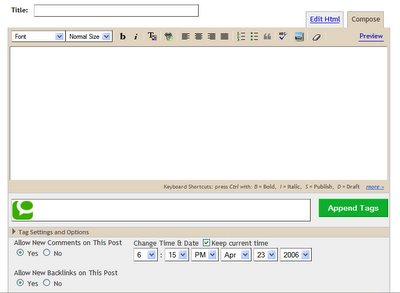
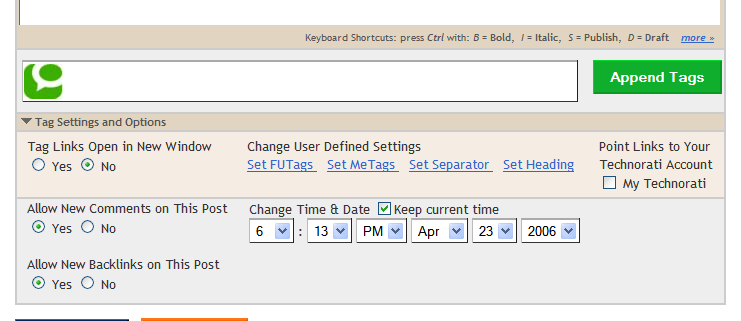
After you Install user script goto Posting Page in blogger you will see green Technorati icon for entering Tag , Green Append Button and tag and Setting options Link just like in the Snapshot Below.


How to Insert Tags in Posts?

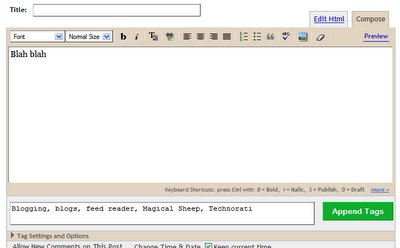
For this enter you choice Tags in Tag box by separating using commas.eg blogger hacks,Blogger tools,......


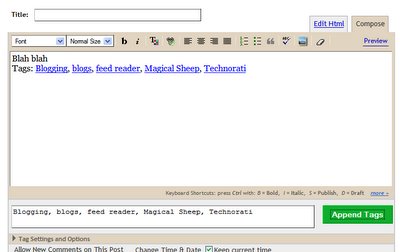
After you Enter Tags in Tag Box Click Append Tag Button.


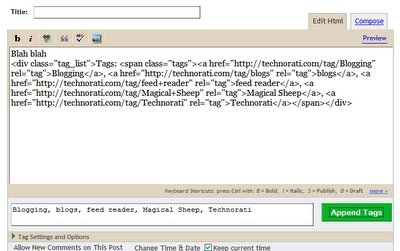
After you append Tags in your blog You can see your tag Code in Html section like this.


How to Open Tags in new Window?

To open Tags in new window Click Tag settings and options Link.After that Check on Yes on Tag Links open in new window.


Technorati Tags: , , ,

Monday, June 16, 2008

Firefox 3 Download day Today can Firefox

Download DayFirefox 3 is reported to be released officially on June 17 , 2008 ie Today with 15,000 more improvements.It is reported to be more faster , safer and smarter than the previous versions of Firefox.Further more it is reported to be provided in different 45 languages for windows , Mac OS and Linux.On the occasion of the download day Firefox has planned to keep the Guinness record for most software download on 24 hours .Can Firefox keep the Guinness record for Most software downloaded on 24 hours ? Is Firefox 3 better than other browsers ?Can Firefox be the world's no 1 browser?let's wait and see.


Technorati Tags: , ,

Sunday, June 15, 2008

ShareThis Social bookmarking script for blogger

In the list of social bookmarking script here comes a new script named sharethis.This script is developed by the talent individuals of different companies.Using this script users can share the blog content either by submitting to different directories or Social bookmarking sites .Besides this users can send the Email of the page to their friends and can share the contents by publishing to their profile in Facebook,Blogger and many other sites.


Using sharethis is Free.You have to follow 3 steps to put this script on your blog.
  1. Register a new account.
  2. Customize the Widget and
  3. Get the button.
Once you install sharethis widget in your blog a button will be displayed below each of your blog post.This widget gets automatically gets updated with new feature .It has got the improved email and other message sending system.You will be provided with tracking and reporting system also.

Sharethis script is not only provided for blogger. It is also provided for Wordpress, Typepad and other web sites.Besides this sharethis plugin is also provided for your blogger either Internet Explorer or Firefox.

Technorati Tags: ,

Create Table of Contents Page for your blog

Previously we have talked about creating table of contents in sidebar . That hack requires two components.There is the code which calls the contents of your blog, and provides a link in the sidebar.This hack is also similar to first one. we have done some modification in that code.You need to combine two codes in the post page.For demo you can see ours table of contents page.

Hack starts

First create a new blog post and paste the following code in Edit Html section.

You can see the whole post published in this blog here.
To see full table of content click the link below(It make take few moments)
<div id="toclink"><a href="javascript:showToc();"><b>Show Table of Content</b></a>
</div><script style="" src="http://home.planet.nl/%7Ehansoosting/downloads/blogtoc.js"></script>
<script src="http://YOURBLOG.blogspot.com/feeds/posts/default?alt=json-in-script&amp;max-results=999&amp;callback=loadtoc"></script>
<div id="toc"></div>

Remember to replace YOURBLOG with your blog name and Paste the above code in order that it looks like this.


Now the second step is the Optional step . If you like to give style to your table of Content then copy the following code and paste it to the head section of your blog code otherwise leave it.

<style type="text/css">
#toc {
border: 0px solid #000000;
background: #ffffff;
padding: 5px;
width:500px;
margin-top:10px;
}
.toc-header-col1, .toc-header-col2, .toc-header-col3 {
background: #ffd595;
color: #000000;
padding-left: 5px;
width:250px;
}
.toc-header-col2 {
width:75px;
}.toc-header-col3 {
width:125px;
}
.toc-header-col1 a:link, .toc-header-col1 a:visited, .toc-header-col2 a:link, .toc-header-col2 a:visited, .toc-header-col3 a:link, .toc-header-col3 a:visited {
font-size:80%;
text-decoration:none;
}
.toc-header-col1 a:hover, .toc-header-col2 a:hover, .toc-header-col3 a:hover {
font-size:80%;
text-decoration:underline;
}
.toc-entry-col1, .toc-entry-col2, .toc-entry-col3 {
padding-left: 5px;
font-size:70%;
}
</style>


More you can give link to your table of contents page in your blog. For that Goto layout Page and add a new HTML page Element .After that create a link text and use the link of the table of contents page which you have copied.

Technorati Tags: ,

Table of Contents Page

Blogger Hacks
Blog WidgetsBlogger Templates
CSSBlogger Tools
JavascriptMake Money

Saturday, June 14, 2008

Add Reddit vote button on your blog (with counter)

We have already explained you how to add digg vote button in your blog . Now we are explaining you to add reddit vote button in your blog . reddit vote button are provided in 3 styles so that you can use any one which you like. To add reddit vote button in your blog copy the following code and paste it in your blog .

Style 1


<script>reddit_url='<data:post.url/>'</script>
<script>reddit_title='<data:post.title/>'</script>
<script language="javascript"
src="http://reddit.com/button.js?t=1"></script>
Style 2


<script>reddit_url='<data:post.url/>'</script>
<script>reddit_title='<data:post.title/>'</script>
<script language="javascript"
src="http://reddit.com/button.js?t=2"></script>

Style 3


<script>reddit_url='<data:post.url/>'</script>
<script>reddit_title='<data:post.title/>'</script>
<script language="javascript"
src="http://reddit.com/button.js?t=3"></script>

You may notice some codes above
<data:post.url/>
This defines the post url
<data:post.title/>
and this code defines post Title.

Technorati Tags: , ,

Show top labels or labels having more posts at label widget

You may have used maximum labels at your blog posts . showing all the labels at label widget may make your label widget look dirty . There is a solution or a hack to show limited labels at label widget by betabloggerfordummies. By using this hack you can show labels having more posts as you define . For example if you define "5" then the labels having more than 5 posts will be displayed.

Hack starts:

Step 1

First of all sign in to your blogger Account after that goto Layout Page.Now add label widget in your blog (Add a Page Element --> Labels --> Save).If you already have label widget in your blog then you should not have to do this step.

Step 2

Goto Edit HTML section , Expand Widget Templates and Search for the following Code.

<b:widget id='Label1' locked='false' title='Labels' type='Label'>
<b:includable id='main'>
<b:if cond='data:title'>
<h2><data:title/></h2>
</b:if>
<div class='widget-content'>
<ul>
<b:loop values='data:labels' var='label'>
<li>
<b:if cond='data:blog.url == data:label.url'>
<span expr:dir='data:blog.languageDirection'>
<data:label.name/>
</span>
<b:else/>
<a expr:dir='data:blog.languageDirection' expr:href='data:label.url'>
<data:label.name/>
</a>
</b:if>
<span dir='ltr'>(<data:label.count/>)</span>
</li>
</b:loop>
</ul>

<b:include name='quickedit'/>
</div>
</b:includable>
</b:widget>
Step 3

Replace the above code with the following code.

<b:widget id='Label1' locked='false' title='Labels' type='Label'>
<b:includable id='main'>
<b:if cond='data:title'>
<h2><data:title/></h2>
</b:if>
<ul>
<script type='text/javascript'>
var labelnum = 0;
<b:loop values='data:labels' var='label'>
if (<data:label.count/> &gt; 2) {
document.write(&quot;<li><a expr:href='data:label.url + "?max-results=100"'
rel='nofollow'><span><data:label.name/></span></a>(<data:label.count/>)</li>&quot;);
}
</b:loop>
</script>
</ul>
<b:include name='quickedit'/>
</b:includable>
</b:widget>

The code above will only show labels with more than two posts. To increase number of labels increase the number two in this code :
if (<data:label.count/> &gt; 2) {

Thursday, June 12, 2008

Add dogpile web search engine to your blog

Dogpile is a search engine where the the users can access the best results from dogpile including the leading search engines like Google, Yahoo!, Ask.com and others.You can read more about dogpile at about dogpile page.


Dogpile search engines are provided in 2 sizes mini and large.You can choose mini or large that fits to your blog but before you put the search box in your blog copy the following code and paste it to your blog code between <head> and </head> Tags. This code submits your page in 'UTF-8' format to dogpile.

<meta http-equiv="Content-Type" content="text/html; charset=UTF-8"/>

large Banner Style


Code:
<!-- Search Dogpile -->
<form method="get" action="http://www.dogpile.com/dogpile/ws/redir/rfcp=Other/rfcid=999915/_iceUrlFlag=11?_IceUrl=true" style="margin:0;">
<input type="hidden" name="qcat" value="web"/>
<input type="hidden" name="_IceUrl" value="true" />
<table width="468" style='background-image:url(http://ttl60m.wsoo.infospace.com.edgesuite.net/dogpile/ws/pics/ext_form_banner_bg.gif/_iceUrlFlag=15?_IceUrl=true); background-repeat: repeat-x;' cellpadding="0" cellspacing="0" border="0">
<tr>
<td>
<img height="48" width="130" alt="Dogpile" class="image" src='http://ttl60m.wsoo.infospace.com.edgesuite.net/dogpile/ws/pics/ext_form_banner_logo.gif/_iceUrlFlag=15?_IceUrl=true'/>
</td>
<td>
<input type="text" name="qkw" value="" style="width:300px;"/>
</td>
<td>
<input type="image" name="submit" value="Search" title="Go Fetch!" src='http://ttl60m.wsoo.infospace.com.edgesuite.net/dogpile/ws/pics/goFetchBtn.gif/_iceUrlFlag=15?_IceUrl=true' style="display:block;margin-right:4px;"/>
</td>
</tr>
</table>
</form>
<noscript>Search widget by <a href="http://bloganol.blogspot.com">Bloganol</a></noscript>


Mini Sidebar Style


Code:
<!-- Search Dogpile -->
<form method="get" action="http://www.dogpile.com/dogpile/ws/redir/rfcp=Other/rfcid=999915/_iceUrlFlag=11?_IceUrl=true" style="margin: 0;">
<input type="hidden" name="qcat" value="web"/>
<input type="hidden" name="_IceUrl" value="true" />
<table width="150" height="117" background='http://ttl60m.wsoo.infospace.com.edgesuite.net/dogpile/ws/pics/ext_form_sidebar.gif/_iceUrlFlag=15?_IceUrl=true'>
<tr>
<td style="text-align:center;vertical-align:top;padding-top:8px;height:30px;">
<input type="text" name="qkw" value="" style="width:126px;"/>
</td>
</tr>
<tr>
<td style="text-align:center;vertical-align:top;">
<input type="image" name="submit" value="Search" title="Go Fetch!" src='http://ttl60m.wsoo.infospace.com.edgesuite.net/dogpile/ws/pics/btn_fetch.gif/_iceUrlFlag=15?_IceUrl=true'/>
</td>
</tr>
</table>
</form>
<noscript>Search widget by <a href="http://bloganol.blogspot.com">Bloganol</a></noscript>

3 Column Blogger Template 'Pepper'

On the request of the author of Bloggertricks.com we have reviewed this blogger template called "Pepper". It is a 3 column blogger template with dark layout . This template was originally a wordpress theme designed by Jinsona of web2feel.com and converted it into blogger theme by bloggertricks.com.

You have got the live demo of this template as well as some extra edits you have to perform to make this template work better. You have got the Snapshot as well . To download use the help of download button below.


Download this theme3 column Pepper-Xml

After you install this template do the following things to make your template work before.

1. Change the navigation link at the top.


You have to set your own link at the navigation bar of your blog. To put your own link there search for the following code and change the links and corrosponding Texts of your own.
<div id="'foxmenu'"><ul>
<li class="'pageitem'"><a href="'YOURLINKHERE'">Home</a></li>
<li class="'pageitem'"><a href="'YOURLINKHERE'">Pictures</a></li>
<li class="'pageitem'"><a href="'YOURLINKHERE'">Videos</a></li>
</ul></div>

2.Change RSs Feed Link .


To use your own rss feed link here search for the following code and replace YOURFEEDLINKHERE with your own feed link.
<div class="'rss'">
<a href="'YOURFEEDLINKHERE'">
<img alt="'Subscribe'" src="'http://myblogtalk.com/bloggertemplates/pepper/images/rss.jpg'" style="'vertical-align:middle'/" />
</a></div>

3.And the third one is to use advertising banner in your blog which looks like this.


If you like to use this type of advertising banner in your blog then search for the following code and edit the code with your own otherwise remove the code.
<div id="'imagelist'"><ul>
<li><a href="'#'" rel="'bookmark'" title="'Permanent">
<img src="'http://myblogtalk.com/bloggertemplates/pepper/images/ad.gif'/" /></a></li>
<li><a href="'#'" rel="'bookmark'" title="'Permanent">
<img src="'http://myblogtalk.com/bloggertemplates/pepper/images/ad.gif'/" /></a></li>
<li><a href="'#'" rel="'bookmark'" title="'Permanent">
<img src="'http://myblogtalk.com/bloggertemplates/pepper/images/ad.gif'/" /></a></li>
</ul></div>

I hope you will enjoy using this . If you like to try more cool Blogger templates then visit this page.

Tuesday, June 10, 2008

Free Glossy Icons set for Bloggers

Blogger Templates , Blogger Hacks , Blog Widgets are the topics we already discussed . Now we are planning to write cool posts on Icons . As the first post we Brought you the cool Icons Set Created by Blog Perfume. It has got toatal 12 shiny and modern icons.It comes with 3 sizes, 24×24, 36×36 and 48×48 in png format suitable for your blog.

Image Hosted by ImageShack.us

Download this theme
Download Blogging Icons Set Now

Remove "Newer Posts" and "Older Posts" Links

It is very easy to remove "Newer Posts" and "Older Posts" Link from the footer of your blog Post . You are actually hiding it which can be rolled back by reversing this hack. Now lets start removing this link from your blog.

Search for the following Code in your Template.
#blog-pager-newer-link {
float: left;
}

#blog-pager-older-link {
float: right;
}

#blog-pager {
text-align: center;
}
Now replace the above code with this code.
#blog-pager-newer-link {
float: left;
display: none;
}

#blog-pager-older-link {
float: right;
display: none;
}

#blog-pager {
text-align: center;
display: none;
}
If you like to rollback this and want to show "Newer Posts" and "Older posts" Link then reverse this Process.

Monday, June 9, 2008

3 column Gemstone Xml Blogger Template

Originally this blogger Template was two column created by Templates for you and Bloganol converted it from two column to three column.You are provided with the cool demo of two column only.To download this template take the help of download link below.